
Gamma AI Se PPT Kaise Banaye in 2026
PPT बनाना हमेशा से एक झंझट रहा है। Topic ढूँढो, slides design करो, images लगाओ, animations सोचो — और फिर घंटों बाद भी result average-सा लगे। मैंने खुद Class 12 के project में रात 2 बजे तक PowerPoint के साथ जूझते हुए एक बात सोची थी — “काश कोई tool होता जो सब खुद कर देता।”
Gamma AI वही tool है। बस एक line का prompt दीजिए, 60 seconds में professional PPT तैयार। लेकिन इस article को पढ़ने से पहले एक जरूरी बात — इस tool के बारे में internet पर कई गलत जानकारियाँ फैली हुई हैं, खासकर free plan के बारे में। इस article में हम verified facts के साथ पूरी सच्चाई बताएँगे।
यहाँ आप सीखेंगे: Gamma AI क्या है, free plan में कितनी PPT बन सकती हैं, Gamma AI से PPT कैसे बनाएँ, Hindi में prompt कैसे लिखें, और PPT को PPTX/PDF में download कैसे करें।
Gamma AI क्या है?
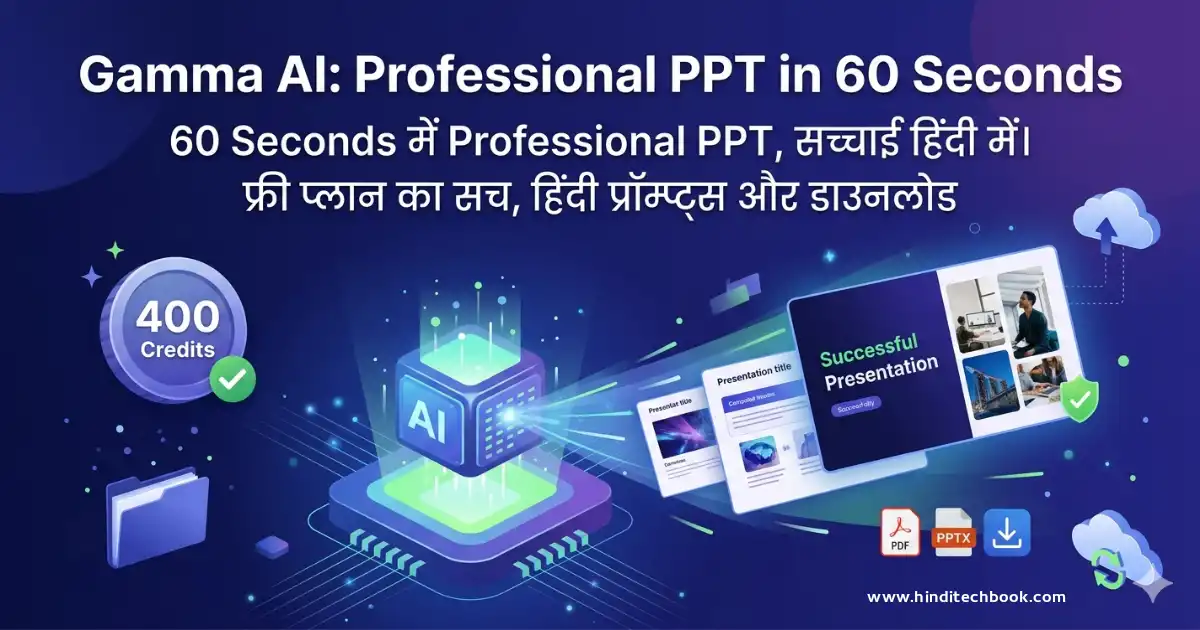
Gamma AI एक browser-based presentation tool है जो Artificial Intelligence की मदद से आपका topic लेकर खुद-ब-खुद slides बना देता है। PowerPoint में जहाँ एक-एक slide manually बनानी पड़ती है, वहाँ Gamma में बस एक prompt काफी है।
यह tool gamma.app पर उपलब्ध है। इसे download नहीं किया जाता — सीधे browser में खुलता है। Laptop हो, phone हो, या tablet — कहीं भी access करो।
Gamma को 2020 में launch किया गया था। 2023 में ChatGPT integration के बाद इसकी popularity अचानक बढ़ गई। आज 2026 में इसके 7 करोड़ से ज़्यादा users हैं और यह presentations के अलावा documents और basic websites भी बना सकता है।
Gamma AI के Free Plan में क्या मिलता है — असली जानकारी
यह section इसलिए जरूरी है क्योंकि internet पर कई blogs ने गलत लिखा है कि “Gamma free में unlimited presentations बना सकते हैं।” यह सच नहीं है।
सभी plans की तुलना यहाँ देखें (May 2026 के अनुसार):
<| Plan | कीमत | Credits | PPT Limit | Watermark | किसके लिए |
|---|---|---|---|---|---|
| Free Free | ₹0 | 400 (एक बार) | ~8-10 | ✅ लगता है | Try करने के लिए |
| Plus Paid | $8/month (annual) | 1,000/month | ~20-25 | ❌ नहीं | Regular users |
| Pro Best Value | $15/month (annual) | 4,000/month | ~80-100 | ❌ नहीं | Freelancers, creators |
| Ultra | $100/month | 20,000/month | Unlimited-सा | ❌ नहीं | Heavy users, teams |
Students के लिए free plan से शुरुआत करना बिल्कुल सही है। 10 presentations काफी होती हैं tool को अच्छे से समझने के लिए। Credits बचाने का एक smart तरीका आगे बताया है।
अगर आप यह समझना चाहते हैं कि students के लिए free AI tools काफी हैं या paid plan लेना चाहिए, तो Free vs Paid AI Tools Students Ke Liye guide भी पढ़ सकते हैं।
Gamma AI Se PPT Kaise Banaye — Step-by-Step Guide
Gamma AI से PPT बनाने के तीन तरीके हैं। हम तीनों explain करेंगे, लेकिन पहले account बनाना जरूरी है।
Sign Up कैसे करें
Google Account से Sign Up करें
“Continue with Google” सबसे आसान है। आपको email या password याद नहीं रखना पड़ता। Credit card की कोई जरूरत नहीं।
Free Plan चुनें
Sign up के बाद plan चुनने का option आएगा। “Continue with free plan” या “Skip” पर click करें।
Dashboard खुल जाएगा
बाईं तरफ “New” या “Create” button दिखेगा। यहाँ से PPT बनाना शुरू करते हैं।
Method 1: Generate Mode — Topic से PPT बनाएँ
यह सबसे popular method है। आपको बस topic या prompt देना है।
“New” → “Generate with AI” click करें
Dashboard पर बाईं तरफ “New” button है। उस पर click करके “Presentation” चुनें।
अपना Prompt लिखें
Text box में topic लिखें। जितना specific prompt, उतनी अच्छी PPT। Hindi में भी लिख सकते हैं।
Outline देखें और Approve करें
Gamma पहले एक outline बनाएगा — slides की list। अगर ठीक लगे तो “Generate” करें। Outline edit भी कर सकते हैं।
Theme चुनें
Color theme और style चुनें — Modern, Classic, Minimal, आदि। Students के लिए “Clean” या “Education” theme अच्छा लगता है।
PPT Generate होगी
60-90 seconds में पूरी presentation तैयार। Text, images, layout — सब AI ने खुद set किया।
Edit करें
किसी भी slide पर click करके text बदल सकते हैं। Images replace करना हो तो image पर click करें और “Replace” चुनें।
Method 2: Paste Mode — Notes से PPT बनाएँ
अगर आपके पास पहले से notes या text है — चाहे वो किसी chapter के हों, assignment के हों, या आपने खुद लिखे हों — तो यह method सबसे fast है।
अगर आप AI की मदद से study notes बनाना सीखना चाहते हैं, तो AI Tools से UPSC Notes कैसे बनाएं guide useful हो सकती है।
“New” → “Paste in text” चुनें
Generate की जगह “Paste in text” option select करें।
Text paste करें
अपने notes, paragraph, या content paste करें। Hindi text भी properly work करता है।
AI automatically slides बनाएगा
Gamma आपके text को analyze करके logical slides में divide कर देगा। आपको कुछ भी arrange नहीं करना।
Method 3: Import Mode — पुरानी File से नई PPT बनाएं
अगर आपके पास पहले से कोई PowerPoint file, PDF, या Google Docs link है, तो उसे Gamma में import करके redesign कर सकते हैं।
“Import file” option चुनें
New presentation create करते समय “Import” या “Upload” option दिखेगा।
File upload करें या link paste करें
PPTX, PDF, Word document, या Google Docs का link — कोई भी format काम करेगा।
Gamma redesign करेगा
आपका पुराना content नए, modern design में convert हो जाएगा।
Hindi Prompt Guide — बेहतरीन PPT के लिए
Gamma में Hindi prompt देना possible है। लेकिन एक बात ध्यान रखें — prompt जितना specific होगा, result उतना अच्छा होगा। नीचे students के काम आने वाले ready-made prompts दिए गए हैं।
School Project के लिए
“Class 12 Physics के Chapter ‘Light: Reflection and Refraction’ पर 10 slides की Hindi presentation बनाओ। हर slide में एक concept, simple explanation, और diagram description शामिल हो।”
“पर्यावरण प्रदूषण पर CBSE Class 10 science project के लिए 8 slides बनाओ। Introduction, causes, effects, और solutions include करो। Simple Hindi language use करो।”
College Assignment के लिए
“Digital Marketing के fundamentals पर 12-slide professional presentation बनाओ। Hindi में content रखो, technical terms English में रहें। SEO, Social Media, और Content Marketing को cover करो।”
Gamma AI से Hindi PPT बनाने का सबसे आसान तरीका
“Create a presentation on [topic] in Hindi language. Keep all content in Hindi, use simple language suitable for Class 10-12 students. Include 8-10 slides with images.”
अगर आप presentations के साथ MCQ practice भी बनाना चाहते हैं, तो Notion AI से MCQ कैसे बनाएं guide भी helpful हो सकती है।
PPT Download कैसे करें — PPTX और PDF दोनों Format में
Presentation बन जाए तो उसे download करना बहुत simple है।
ऊपर Right में “…” या “Share” button खोजें
Presentation खुली हो तो top-right corner में three dots (⋯) या “Share” button दिखेगा।
“Export” option चुनें
Drop-down menu में “Export” या “Download” का option आएगा।
Format चुनें
PDF — सबसे reliable format, fonts टूटते नहीं। PowerPoint (PPTX) — अगर teacher को editable file चाहिए। PNG — individual slides as images।
Mobile से Gamma AI कैसे Use करें
Phone पर PPT बनाना Gamma में completely possible है। कोई app नहीं चाहिए — बस browser से काम हो जाता है।
Best Browser — Chrome या Safari
Android पर Chrome और iPhone पर Safari सबसे अच्छा काम करता है। Browser का desktop mode on करने की जरूरत नहीं, mobile view में भी सब ठीक दिखता है।
Mobile पर Steps
- Phone के browser में gamma.app खोलें
- Sign in करें (Google account से)
- “New” button tap करें — usually bottom में या top-left में होता है
- Prompt type करें, Generate tap करें
- Slides को touch करके edit करें — text tap करके type कर सकते हैं
- Download करने के लिए Share → Export tap करें
Gamma AI vs PowerPoint vs Google Slides — क्या choose करें?
| Feature | Gamma AI | PowerPoint | Google Slides |
|---|---|---|---|
| Setup time | 60 seconds | 30-60 minutes | 20-40 minutes |
| Design skill चाहिए? | बिल्कुल नहीं | थोड़ी बहुत | थोड़ी बहुत |
| Free में कितनी PPT | 8-10 (400 credits) | Unlimited (MS account) | Unlimited |
| Internet जरूरी? | हाँ | नहीं (offline) | हाँ |
| Result Quality | Professional | Depends on skill | Depends on skill |
| Hindi Content | Prompt से | Manual typing | Manual typing |
| Teacher को submit करना | Free: watermark Paid: clean |
Clean | Clean |
निष्कर्ष: अगर आपको time नहीं है और quick professional PPT चाहिए — Gamma best है। अगर school submission के लिए watermark-free file चाहिए और paid plan नहीं लेना — PowerPoint या Google Slides ज़्यादा practical हैं।
✅ Gamma AI के फायदे
- 60 seconds में complete PPT
- Design automatically होती है
- Hindi prompt support
- Notes को PPT में convert करें
- Mobile से भी use करें
- PDF, PPTX, PNG — सब formats
⚠️ सीमाएँ जो जाननी चाहिए
- Free में सिर्फ 8-10 PPT
- Free export पर watermark
- Offline काम नहीं करता
- PPTX export में कभी-कभी formatting टूट जाती है
- Hindi fonts कभी-कभी PDF में अलग दिखते हैं
आम गलतियाँ जो Students करते हैं
1. Credits बेकार में खर्च करना
हर बार पूरी PPT regenerate करने में 40-50 credits जाते हैं। अगर एक slide पसंद नहीं आई, तो पूरी PPT दोबारा generate मत करें। सिर्फ उस slide को edit करें या उस पर right-click करके “Edit with AI” use करें। इससे कम credits लगते हैं।
2. Vague Prompt देना
“PPT बनाओ” — यह prompt बेकार है। Gamma को नहीं पता आप कितनी slides चाहते हैं, किस level के students के लिए है, कौन-सा tone चाहिए। हमेशा specific prompt दें जैसा ऊपर examples में बताया है।
3. Gamma को “Gamma AI app download” करने की कोशिश
Gamma की कोई official app नहीं है। जो भी site “Gamma AI app” download करवाए — वह fake है। हमेशा सिर्फ browser में gamma.app खोलें।
4. Free Plan की गलत उम्मीदें रखना
Free plan में unlimited PPT नहीं बनतीं — यह एक common myth है। 400 credits one-time हैं। Planning करके use करें, फालतू experiments में credits waste न करें।
5. Content को बिना check किए submit करना
AI-generated content हमेशा 100% accurate नहीं होता। Dates, statistics, या facts हो तो उन्हें एक बार verify जरूर करें — खासकर exam-related projects में।
अक्सर पूछे जाने वाले सवाल
क्या Gamma AI bilkul free है? कितनी PPT बना सकते हैं free में?
Gamma AI free plan में account बनाना और use करना free है, लेकिन इसमें 400 credits मिलते हैं जो एक बार के लिए हैं — हर महीने refresh नहीं होते। एक PPT बनाने में लगभग 40-50 credits लगते हैं, इसलिए free plan में कुल 8 से 10 presentations बन सकती हैं।
Free plan में export करने पर “Made with Gamma” watermark आता है। अगर ज़्यादा presentations चाहिए या watermark हटाना है, तो Plus plan ($8/month, annual billing) लेना होगा।
क्या Gamma AI Hindi में PPT बना सकता है?
हाँ, Gamma Hindi content generate कर सकता है। इसके लिए prompt में clearly mention करना होगा — जैसे “Create presentation in Hindi language” या “हिंदी में presentation बनाओ।”
एक बात ध्यान रखें — Gamma का interface English में है, लेकिन content Hindi में generate होगा। PDF export में Hindi fonts generally ठीक रहते हैं, लेकिन PPTX में कभी-कभी font rendering issues आ सकती हैं।
Gamma AI का watermark कैसे हटाएँ?
Free plan में watermark हटाना directly possible नहीं है। दो options हैं:
Option 1: Plus plan लें ($8/month annual billing) — इससे watermark automatically हट जाता है। Option 2: Free plan में रहना हो तो PDF export करें और उसे किसी PDF editor में open करके watermark crop करें — लेकिन यह tedious है और हर page पर करना पड़ेगा।
Mobile पर Gamma AI कैसे use करें? कोई app है क्या?
Gamma AI की कोई official mobile app नहीं है। इसे mobile browser से use करते हैं। Android पर Chrome और iPhone पर Safari open करें, gamma.app पर जाएँ, और काम शुरू करें।
Mobile screen पर editing thoda limited लगती है, लेकिन basic PPT बनाने और download करने का काम आराम से हो जाता है। Landscape mode में phone रखने से editing easier होती है।
Gamma की PPT को PowerPoint (.pptx) में कैसे download करें?
Presentation open हो तो top-right corner में “Share” या “⋯” button click करें। “Export” option चुनें, फिर “PowerPoint” (.pptx) format select करें। File automatically download हो जाएगी।
एक बात — PPTX format में कभी-कभी layout थोड़ा shift हो सकता है, खासकर complex slides में। अगर exact formatting चाहिए तो PDF format ज़्यादा reliable है।
Credits खत्म हो जाएँ तो क्या करें?
अगर free plan के 400 credits खत्म हो गए, तो तीन options हैं: पहला — Plus plan ($8/month) upgrade करें जिसमें 1,000 credits हर महीने मिलते हैं। दूसरा — Referral program: किसी दोस्त को Gamma refer करने पर bonus credits मिल सकते हैं। तीसरा — अगर paid plan नहीं लेना तो Google Slides या PowerPoint से manually PPT बनाएँ।
Credits खत्म होने के बाद आपकी पुरानी presentations access कर सकते हैं, सिर्फ नई AI generation नहीं होगी।
क्या Gamma AI safe है? Data secure रहता है क्या?
Gamma एक established tool है — $2.1 billion valuation और 7 करोड़ users के साथ। यह SOC 2 certified है (Business plan पर) और standard data security practices follow करता है।
Free और Plus plan users के लिए data privacy की basic protection है, लेकिन AI training के लिए data use हो सकती है। अगर sensitive personal या exam-related information है तो उसे presentation में include न करें।
निष्कर्ष — क्या Gamma AI Students के लिए सही है?
Gamma AI genuinely impressive है — एक prompt दो, 60 seconds में professional slides तैयार। School projects, college assignments, या किसी topic की summary presentation — सब कुछ बहुत तेज़ हो जाता है।
यह किसके लिए है: उन students के लिए जिन्हें design की समझ नहीं है लेकिन अच्छी PPT चाहिए। जिनके पास time कम है। जो अपने notes को quickly presentable format में बदलना चाहते हैं।
यह किसके लिए नहीं है: अगर आपको watermark-free file free में चाहिए — Gamma वह नहीं दे सकता। अगर offline काम करना है — तब PowerPoint बेहतर है। अगर बहुत detailed और customized design चाहिए — तब Canva या PowerPoint ज़्यादा control देता है।
शुरुआत कैसे करें: अभी gamma.app पर जाएँ, Google account से sign in करें, और ऊपर दिए गए किसी एक prompt को try करें। पहली बार में ही आप देखेंगे कि यह tool कितना काम आ सकता है।

Ppt on earth quake