🔍 Google Lens Image to Text: क्या आप भी परेशान हैं?
सोचिए — आप library में बैठे हैं और आपके सामने एक मोटी किताब है। आपको एक महत्वपूर्ण chapter से कुछ paragraphs अपने assignment में चाहिए। अगर manually type करें तो 15-20 मिनट आसानी से लग जाएंगे। हाथ दर्द होने लगता है, समय बर्बाद होता है, और typing में गलतियां भी हो सकती हैं।
या फिर class में बैठे हैं। Professor board पर महत्वपूर्ण formulas और notes तेज़ी से लिख रहे हैं। आप लिखने की कोशिश कर रहे हैं लेकिन speed नहीं रख पा रहे। कुछ छूट जाता है, handwriting गन्दी हो जाती है, और बाद में खुद ही नहीं पढ़ पाते।
मैं भी college के दौरान इन्हीं problems से गुज़रा हूँ। खासकर research paper लिखते समय जब reference books से सैकड़ों quotes निकालने होते थे। Manual typing में पूरे-पूरे दिन चले जाते थे। फिर एक दिन एक senior ने मुझे Google Lens Image to Text feature के बारे में बताया।
शुरुआत में विश्वास नहीं हुआ कि camera से text scan करके सीधे copy कर सकते हैं। लेकिन जब पहली बार use किया तो वाकई life-changing साबित हुआ। जो काम घंटों लेता था, वह minutes में हो गया।
इस detailed article में आप सीखेंगे:
- Google Lens से image को text में कैसे convert करें (4 different methods विस्तार से)
- किन situations में कौनसी method best results देती है
- Common problems और उनके practical solutions (real experience से)
- Personal tips जो accuracy को 90% से बढ़ाकर 98% तक ले जाएं
- Honest review — यह feature कहाँ बेहतरीन काम करता है और कहाँ limitations हैं
- Privacy और security संबंधी important जानकारी
चलिए शुरू करते हैं और समझते हैं कि कैसे आप Google Lens की मदद से अपनी पढ़ाई को आसान बना सकते हैं?
Google Lens Image to Text क्या है और कैसे काम करता है?
Google Lens Image to Text की परिभाषा
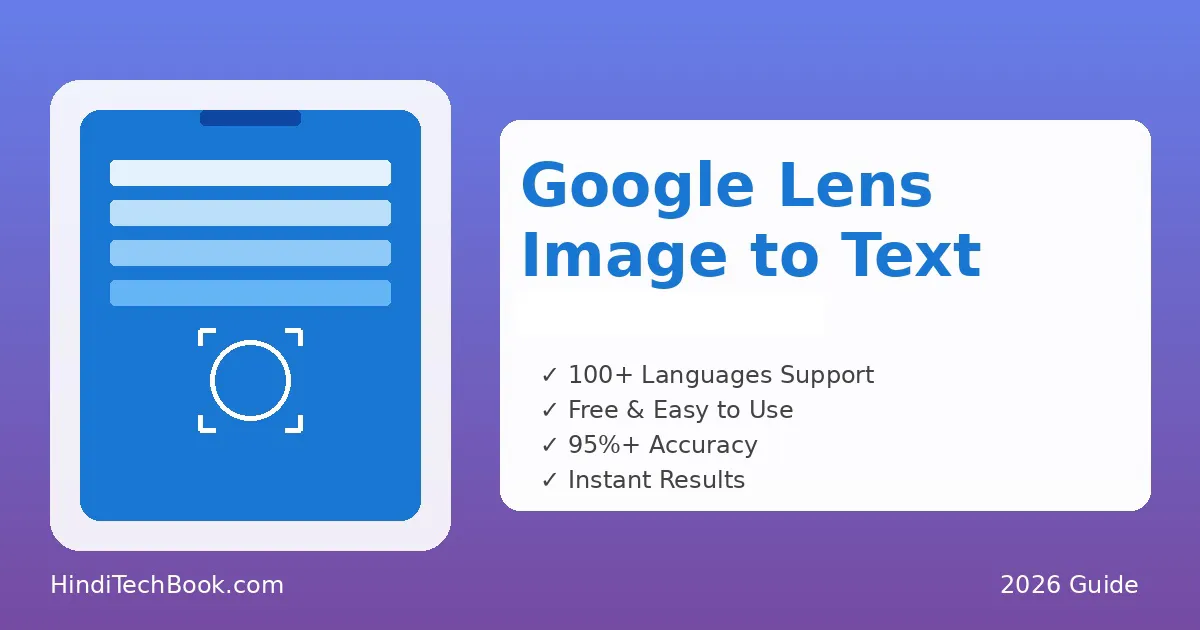
Google Lens Image to Text एक ऐसी powerful feature है जो आपके smartphone के camera या किसी saved photo से text को पहचानकर उसे copy करने योग्य digital text में convert कर देती है। सीधे शब्दों में, आप किसी भी लिखे हुए text की photo लें, और Google Lens उसे editable text में बदल देगा।
गूगल लेंस की technology OCR (Optical Character Recognition) पर based है। OCR का मतलब है कि computer images में लिखे characters को “पढ़” सकता है और उन्हें digital format में convert कर सकता है। Google ने इस technology में अपनी advanced Artificial Intelligence और Machine Learning add की है, जिससे accuracy पहले के मुकाबले काफी बढ़ गई है।
Real Example से समझें
मान लीजिए आपको किसी English newspaper के article का reference चाहिए। पुराने time में आपको पूरा article manually type करना पड़ता। अब आप बस newspaper की photo लें, Google Lens open करें, text select करें और copy-paste करें — बस! सिर्फ 2 minutes का काम।
📚 Real Case: Assignment की Deadline
Situation: Rohan एक third-year economics का student है। उसे अपने assignment के लिए reference book से 2-3 paragraphs की जरूरत थी। Problem यह थी कि book reference section में थी और issue नहीं की जा सकती थी। Deadline अगले दिन थी।
Solution: उसने Google Lens app खोला, book के जरूरी pages की photos लीं, text mode में सारे paragraphs select किए, और सीधे अपने Google Docs में paste कर दिए। Total time: सिर्फ 5 minutes!
Result: Assignment समय पर complete हुआ। Manual typing से बच गया जो 30-40 minutes लेती और mistakes की possibility भी थी।
मैंने personally इसका use किया है जब मुझे अपने professor के old research papers से quotes निकालने थे। उन papers की PDF थी लेकिन text selectable नहीं था (scanned images थीं)। Google Lens ने सच में बचाया — सभी जरूरी quotes 10 minutes में निकाल लिए।
Google Lens Technology कैसे काम करती है?
अगर आप थोड़ा technical समझना चाहते हैं तो यह interesting है। जब आप कोई image Google Lens में scan करते हैं, तो background में 5 steps होते हैं:
Step 1: Image Processing
सबसे पहले Google का AI आपकी image को analyze करता है — lighting, clarity, text का angle, सब check करता है। यह decide करता है कि image workable है या नहीं।
Step 2: Text Detection
फिर algorithm पूरी image में text वाले areas को identify करता है और बाकी background को ignore कर देता है। यह समझ जाता है कहाँ focus करना है।
Step 3: Character Recognition
अब हर एक character को individually recognize किया जाता है। A, B, C या फिर १, २, ३ — सब कुछ। यह OCR technology का core part है।
Step 4: Context Understanding
Google का AI सिर्फ letters ही नहीं, context भी समझता है — मतलब यह differentiate कर सकता है कि कौनसा text heading है, paragraph है, या list item है।
Step 5: Output Generation
Finally आपको clean, copyable, editable text मिल जाता है जिसे आप कहीं भी paste कर सकते हैं। पूरी process Google के cloud servers पर seconds में होती है!
Interesting fact: यह सब कुछ Google के powerful servers पर होता है, आपके phone पर नहीं। इसलिए internet connection जरूरी है। फायदा यह है कि processing बहुत fast होती है और आपके phone की battery waste नहीं होती।
Google Lens से Image to Text कैसे करें? (4 Methods)
अब actual काम की बात करते हैं। मैंने personally चारों methods को कई बार try किया है और हर एक की अपनी खासियत है। आपको situation के हिसाब से decide करना होगा कौनसी method use करनी है।
Method 1: Real-Time Scanning (मेरी Favorite!)
यह सबसे common और fastest method है। जब आपको book, whiteboard, poster या किसी printed document से तुरंत text copy करना हो।
Step-by-Step Process:
- Google Lens app खोलें — Android में यह usually pre-installed होता है। iPhone users Google app में lens icon देखें।
- Camera को text पर point करें — Phone को steady रखें, हिलाएं नहीं। Good lighting में रखें text को।
- “Text” mode select करें — नीचे options में “Text” button दिखेगा, tap करें।
- Text automatically highlight हो जाएगा — Google Lens smart है, वो खुद समझ जाएगा कहाँ text है।
- Select करें जो चाहिए — पूरी screen select करनी है तो “Select All” दबाओ, या finger से specific part choose करो।
- Copy button दबाएं — बस! अब text clipboard में है। WhatsApp, Notes, Google Docs — कहीं भी paste करो।
Method 2: Gallery से Text Extract करना
अगर photo पहले से ही phone में saved है — screenshot, downloaded image, या पुरानी photo — तो यह method use करो।
कैसे करें:
- Google Photos app खोलो
- वह image select करो जिसमें text है
- Bottom में Lens icon दिखेगा — tap करो
- Automatically text mode activate हो जाएगा
- Text select करके copy करो
यह method कब specially useful है:
- आपने class notes जैसे कि UPSC notes बनाने के लिए इसकी photos पहले ली थीं
- WhatsApp पर किसी ने study material भेजा है
- Internet से कोई infographic download की है
- Old question papers की images हैं
Method 3: Chrome Browser से (Desktop + Mobile)
Online images या websites पर text है जो normally copy नहीं हो रहा? Google लेंस की Chrome feature का use करो!
Mobile पर:
- Chrome browser में image खोलो
- Image पर long press करो
- “Search with Google Lens” option select करो
- Text mode में switch करके copy करो
Desktop पर:
- किसी भी image पर right-click करो
- “Search image with Google Lens” option चुनो
- Side panel में Lens खुलेगा
- “Select text” icon पर click करके text highlight करो और copy करो
Method 4: Google Keep से Automatic Extraction
यह method थोड़ा underrated है but बहुत powerful है अगर तुम notes organize करते हो।
- Google Keep app खोलो
- New note create करो
- Camera icon से photo लो या choose करो
- Image के ऊपर three dots (⋮) tap करो
- “Grab image text” select करो
- Magic! Text automatically note में add हो जाएगा
Google Keep का advantage: Image और extracted text दोनों एक साथ save होते हैं। Future में reference के लिए बहुत helpful। Plus, Google Keep automatically sync होता है सभी devices पर।
किस Situation में कौनसा Method Best है?
| Situation | Best Method | क्यों? |
|---|---|---|
| Library में book से text | Method 1 (Real-time) | सबसे fast, on-the-spot |
| WhatsApp पर received material | Method 2 (Gallery) | Image already saved है |
| Online article से text | Method 3 (Chrome) | Direct browser से |
| Class notes organize करना | Method 4 (Keep) | Image + text दोनों save |
Google Lens Image to Text के मुख्य फायदे
1. Time की Massive बचत
एक average student एक page manually type करने में 10-15 minutes लगाता है। Google Lens से same काम 1-2 minutes में हो जाता है। यानी 80-90% time saving!
मेरी finals के time मैंने approx 200 pages की reference material scan की थी। Manual typing होती तो लगभग 30-40 hours लगते। Lens से? Barely 2-3 hours। और बाकी time में actual पढ़ाई की।
2. Language Barriers टूट जाती हैं
Google Lens 100+ languages support करता है। French, German, Spanish, Chinese — कुछ भी हो, scan करो और translate कर लो। मेरी friend medical student है, उसको Latin terms समझने थे। Google Lens से textbook scan करती है, और instantly Hindi या English में translate कर लेती है।
3. Research और Assignments Fast होते हैं
Citations, quotes, data — सब कुछ books से निकालना पड़ता है research papers में। Google Lens से यह सब seconds में हो जाता है। Copy करो, paste करो, citation add करो, done!
Google Lens Image to Text में आने वाली Common Problems और Solutions
Problem 1: Handwriting Recognition Fail हो जाती है
Reality: Google Lens printed text के लिए optimized है। Handwritten text के साथ struggle करता है, especially अगर handwriting messy है।
Solutions मैंने Try किए:
- Print-style handwriting लिखने की कोशिश करो
- Bigger letters लिखो — छोटे letters confuse करते हैं
- Multiple attempts try करो different angles से
- अगर बहुत जरूरी है तो Microsoft Lens try करो
Problem 2: Blurry या Low Quality Images
Symptoms: Text partially detect हो रहा है, बीच में gaps आ रहे हैं, या completely fail हो रहा है।
Solutions:
- Phone के camera settings check करो — HDR mode on करो
- Lens को wipe कर लो (seriously, dusty lens = blurry photos)
- Tap करके focus manually set करो before clicking
- Zoom avoid करो — better है पास जाओ
Problem 3: Multi-Column Text Jumble हो जाता है
Smart Fix: पूरा page scan मत करो — एक column को isolate करके scan करो। Photo को crop कर लो पहले (gallery में), फिर scan करो।
Google Lens Image to Text के फायदे और नुकसान — Honest Review
✅ फायदे
- Completely Free — कोई subscription नहीं
- Fast Processing — Seconds में results
- High Accuracy — Good quality images के साथ 95%+ accurate
- 100+ Languages — Almost सभी languages
- Translation Built-in — Scan और instantly translate
- Easy to Use — कोई learning curve नहीं
⚠️ Limitations
- Internet Required — Offline बिल्कुल limited
- Handwriting Weak — Messy handwriting fail
- Complex Layouts Struggle — Multi-column confuse करते हैं
- Privacy Concerns — Data Google servers पर जाता है
- Quality Dependent — Blurry image = poor results
Google Lens Image to Text के बारे में अक्सर पूछे जाने वाले सवाल (FAQs)
क्या Google Lens free है?
हाँ, 100% free है! कोई subscription नहीं, कोई hidden charges नहीं। बस आपके पास Google account होना चाहिए।
क्या गूगल लेंस offline काम करता है?
Limited। Basic text detection हो जाती है but full extraction और translation के लिए internet चाहिए। Processing Google के cloud servers पर होती है।
Handwritten notes से text निकाल सकते हैं?
हाँ, but accuracy low होगी। अगर handwriting clear है, print-style है, तो 60-70% accuracy मिल सकती है। Messy handwriting के साथ fail हो जाता है।
कौनसी languages support हैं?
100+ languages! Indian: Hindi, English, Tamil, Telugu, Bengali। European: Spanish, French, German। Asian: Chinese, Japanese, Korean। Plus translation भी support है।
Accuracy कितनी है?
Image quality पर depend करता है। Good quality: 95-98% accurate। Average quality: 80-90%। Poor quality/handwritten: 50-70%। हमेशा proofread करो!
PDF files से text extract हो सकता है?
Indirectly हाँ। PDF को किसी app में open करो → page का screenshot लो → screenshot को Lens से scan करो। थोड़ा tedious but काम करता है।
निष्कर्ष: Google Lens Image to Text आपके लिए सही है या नहीं?
Google Lens Image to Text आपके लिए perfect है अगर:
- ✅ आप student हैं और regularly books, notes से text copy करना पड़ता है
- ✅ Time बचाना चाहते हो — manual typing frustrating है
- ✅ Multiple languages के साथ काम करते हो
- ✅ Research, assignments में references quickly निकालने हैं
- ✅ Good quality images ले सकते हो
यह best option नहीं है अगर:
- ❌ Mostly handwritten notes से काम है
- ❌ Complex layouts से regularly deal करना पड़ता है
- ❌ Privacy major concern है
- ❌ Offline functionality absolutely necessary है
मेरा Personal Take:
दो साल पहले अगर किसी ने बोला होता कि phone से text scan कर सकते हैं और seconds में copy कर सकते हैं, तो मुझे believe नहीं होता। But Google Lens ने सच में मेरी college life easier बना दी। Especially COVID के time जब libraries band थीं।
हाँ, यह perfect नहीं है। Handwriting के साथ struggle करता है, offline limitations हैं, privacy concerns हैं। But 80% use cases में solid काम करता है। और जो time बचता है, वो actual studying में invest कर सकते हो।
Next Steps:
- आज ही Google Lens open करो और किसी random book से experiment करो
- Different lighting conditions try करो
- Google Keep integrate करो अपने study workflow में
- Friends को भी बता दो — सबकी help हो जाएगी
All the best, और happy scanning! 📱✨
P.S. — अगर यह article helpful लगा, तो अपने college/school के WhatsApp groups में share करो!